.svg)

The Kotzilla MCP server lets your AI coding agent, like Claude Code or Cursor, find and fix ANRs, slow screens, and slow startups from your app's production data.
With this release, your agent finds the root cause, fixes the issue, verifies the fix on a fresh session, and closes it once you approve.
Setup takes two prompts.
An ANR (Application Not Responding) happens when your app's main thread stays blocked long enough for Android to show the "App isn't responding" dialog. For input events, that limit is five seconds. Android vitals or your crash reporter tells you the main thread was blocked.
To fix it, you still need the screen, the component, and the code path behind it.
Then you change the code and check that the change worked.
AI coding agents are good at the code change.
To do the rest, they need two things: production data that shows where to look, and a way to check the result.
The October 19, 2026 Kotzilla release connects both, from setup to a closed issue.
If you remember one thing from this post: the agent verifies the fix on a fresh session, then closes the issue once you approve.
This post walks through the full flow to fix Android ANRs with an AI coding agent, using one real example.
What's in the October 2026 release
The release updates three parts of the Kotzilla Platform:
| Component | Version | What changed |
|---|---|---|
| Kotzilla MCP Server | 1.18.3 | Setup with one prompt, a new update_issue_status tool, native HTTP for Cursor, render timeline around the issue in get_issue_context |
| Kotzilla SDK | 3.0.1 | Startup follows TTID, slow screen and ANR detection for Fragments and Compose screens, new @TrackScreen annotation |
| Kotzilla Console | 4.19.1 | Investigate with MCP button, cleaner issues, issue status changes from the issues list, combined versions on the dashboard |
MCP (Model Context Protocol) is an open standard that lets an AI agent call tools in other services. Through the Kotzilla MCP server, your coding agent works from your app's production data and can change an issue's status in Kotzilla.
How do you connect your AI coding agent to Kotzilla?
You connect your agent with two prompts: one installs the MCP server, and a second one registers your app and adds SDK 3.0.
In Claude Code, Cursor or any coding agent, paste this prompt:
Set up Kotzilla MCP server using https://kotzilla.io/llms.txt Then sign in with your Kotzilla account, and ask your agent to register your app and set up the SDK. New SDK installs use SDK 3.0.
Note: If your app already uses SDK 2.3.x, no code change is needed to upgrade to 3.0. SDK 2.1.1 is now the minimum version. Apps on older SDKs can no longer send sessions, so check the version upgrade guide before your next release.
For details on each step, see the MCP setup guide. If you build for Kotlin Multiplatform, the Kotzilla MCP server for KMP covers that setup.
What does Kotzilla SDK 3.0 detect?
SDK 3.0 changes how app startup is measured, and extends slow screen and ANR detection to more screens.
Startup follows time to initial display (TTID)
With SDK 3.0.1, app startup follows Android's time to initial display (TTID), the time it takes to display your app's first frame:
- Startup ends at the first frame drawn, so it includes the layout and first draw your users wait for.
- On Android 15 and later, cold starts use the system's own measurement.
- Warm starts include the recreated Activity's
onCreate. - A return to an Activity that was only stopped is reported as a hot start.
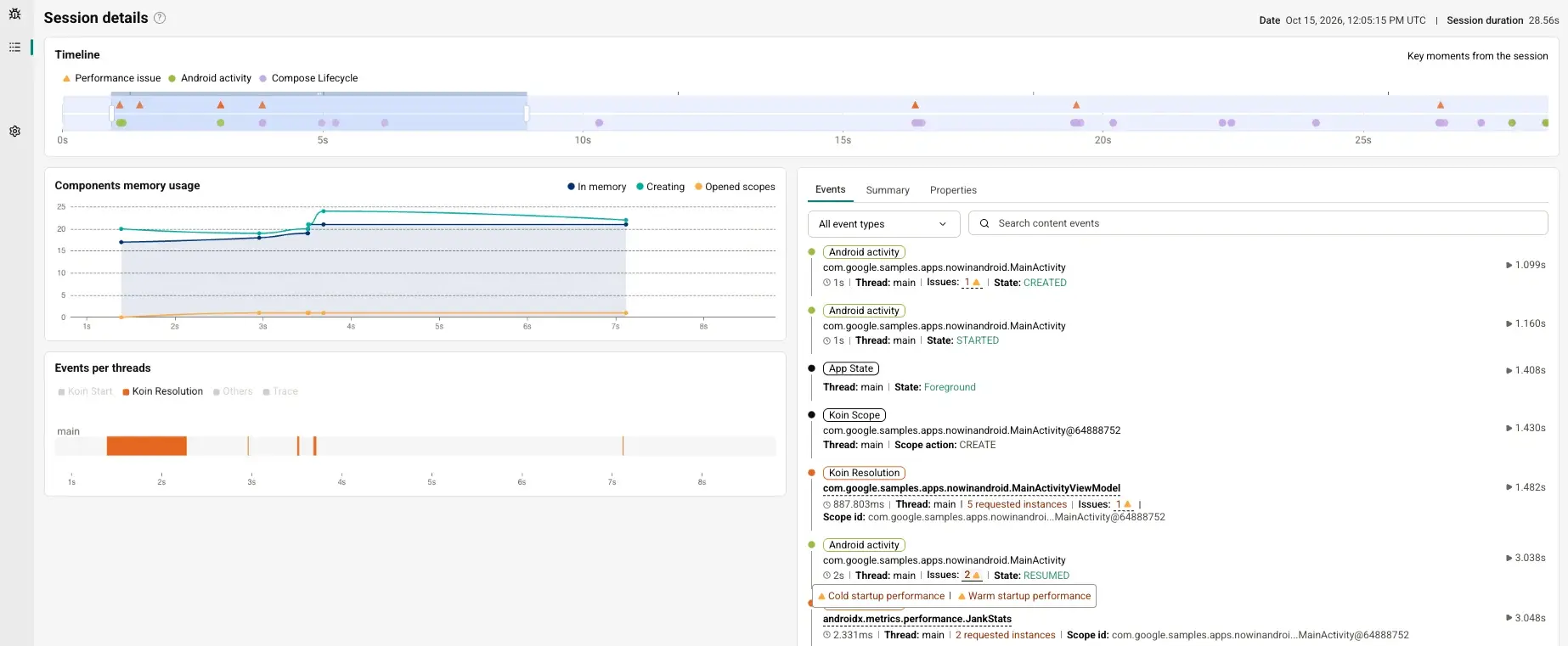
For each startup issue, the session timeline shows the components resolved during the start, with their timing and thread, so you see which one held the main thread.
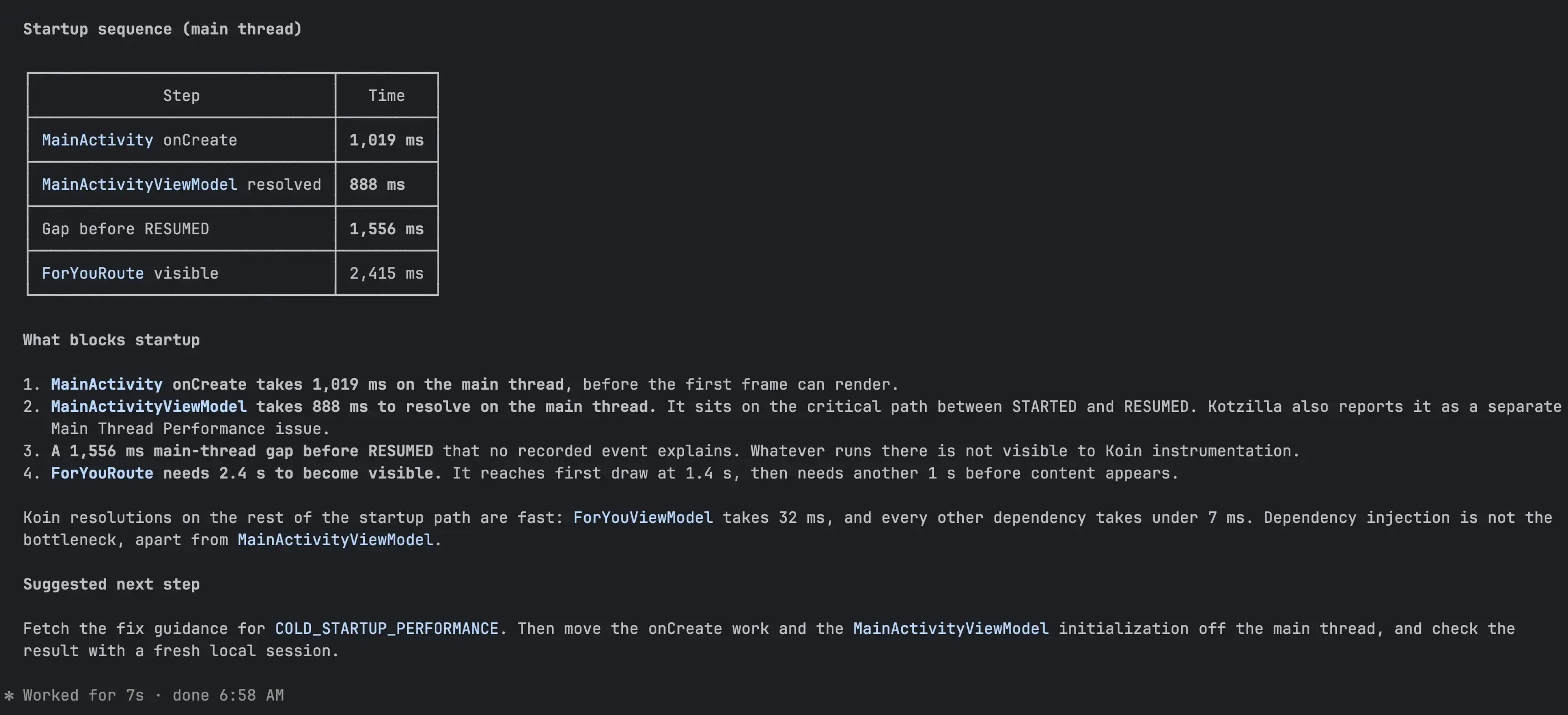
Ask your agent about the same issue, and it gets that context through the MCP server: the startup sequence on the main thread, what blocks it, and the next step to fix it.
Slow screens and ANRs in Fragments and Compose screens
SDK 3.0 extends slow screen and ANR detection to Fragments in any Activity, and to Compose screens outside Navigation with the new @TrackScreen annotation. Apply the Kotzilla plugin in the module that declares the function:
@TrackScreen(name = "SettingsDialogScreen")
@Composable
private fun TrackedSettingsDialog(onDismiss: () -> Unit) {
    SettingsDialog(onDismiss = onDismiss)
} The screen then shows up in Screen Rendering, next to your Navigation screens.
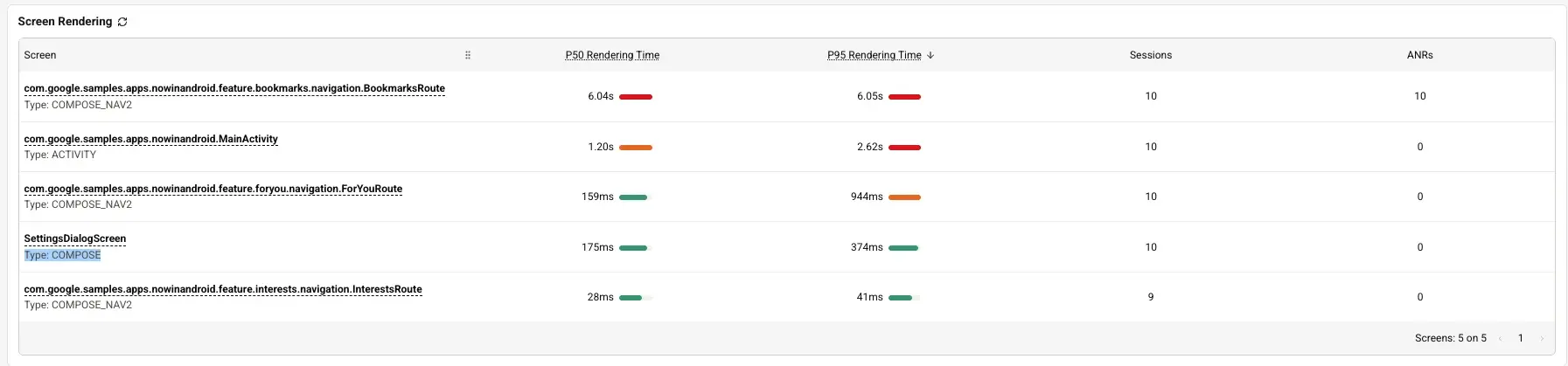
Each screen is timed on its own load work, including a Compose screen's first composition and a Fragment's setup. The time a screen spends waiting behind a dialog or in another tab is left out.
Also in SDK 3.0
- Mapping files of any size now upload, and a failed mapping or dSYM upload no longer fails the build.
- A new
prepareKotzillaMapping<Variant>task prepares the mapping file so you can upload it from the Console. - Crashes during app startup are now reported on the next launch.
- Kotlin 2.4.20 is supported.
See the full list in the SDK changelog.
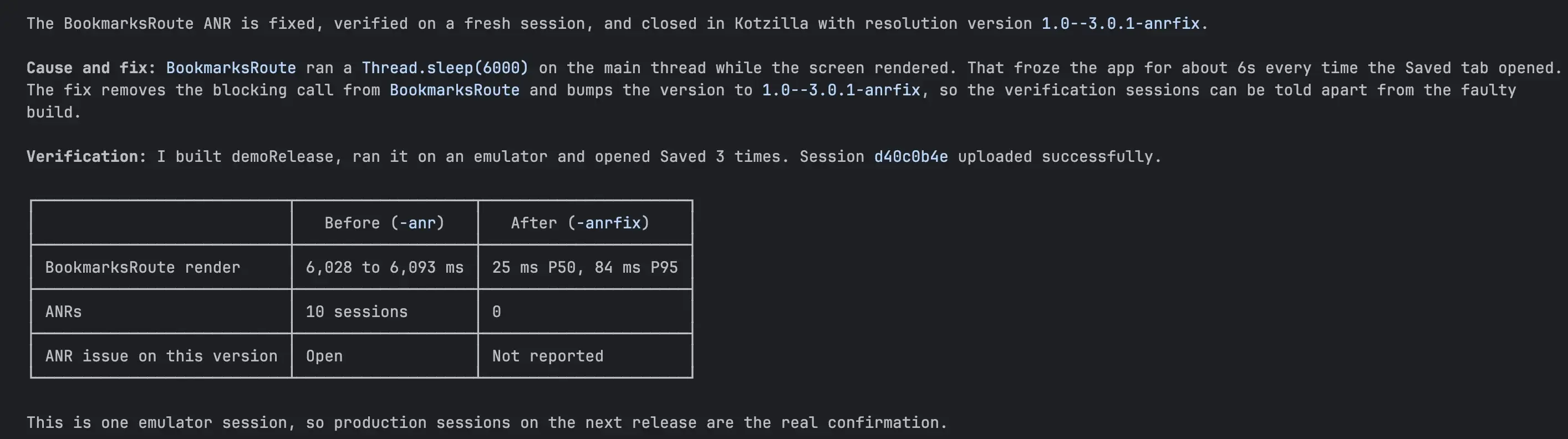
How does the agent fix, verify, and close an ANR?
Your agent finds the root cause, applies a fix, verifies it on a fresh session, and proposes closing the issue in Kotzilla. Ask for it in your prompt, and it closes the issue with the version that fixed it.
Here is an example, from start to finish.
You give the agent this prompt:
Start from the Kotzilla Console
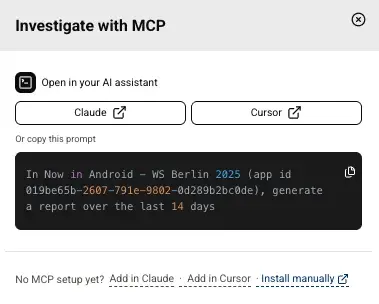
You can also start from the Kotzilla Console. On your app dashboard, click Investigate with MCP. The Claude or Cursor desktop app opens with a prompt for the app and time window you selected. You can also copy the prompt into any other assistant.
If the MCP server is not set up yet, Add in Claude or Add in Cursor installs it from the same window.
Cleaner issues
- One crash, one issue: a crash no longer splits into several issues, and existing duplicates were merged.
- Fragment class names in crash messages are deobfuscated.
- Issues in Compose apps name the Compose screen they happened on, not only the host Activity.
- The issue list ranks issues by the session count it shows.
More Console updates
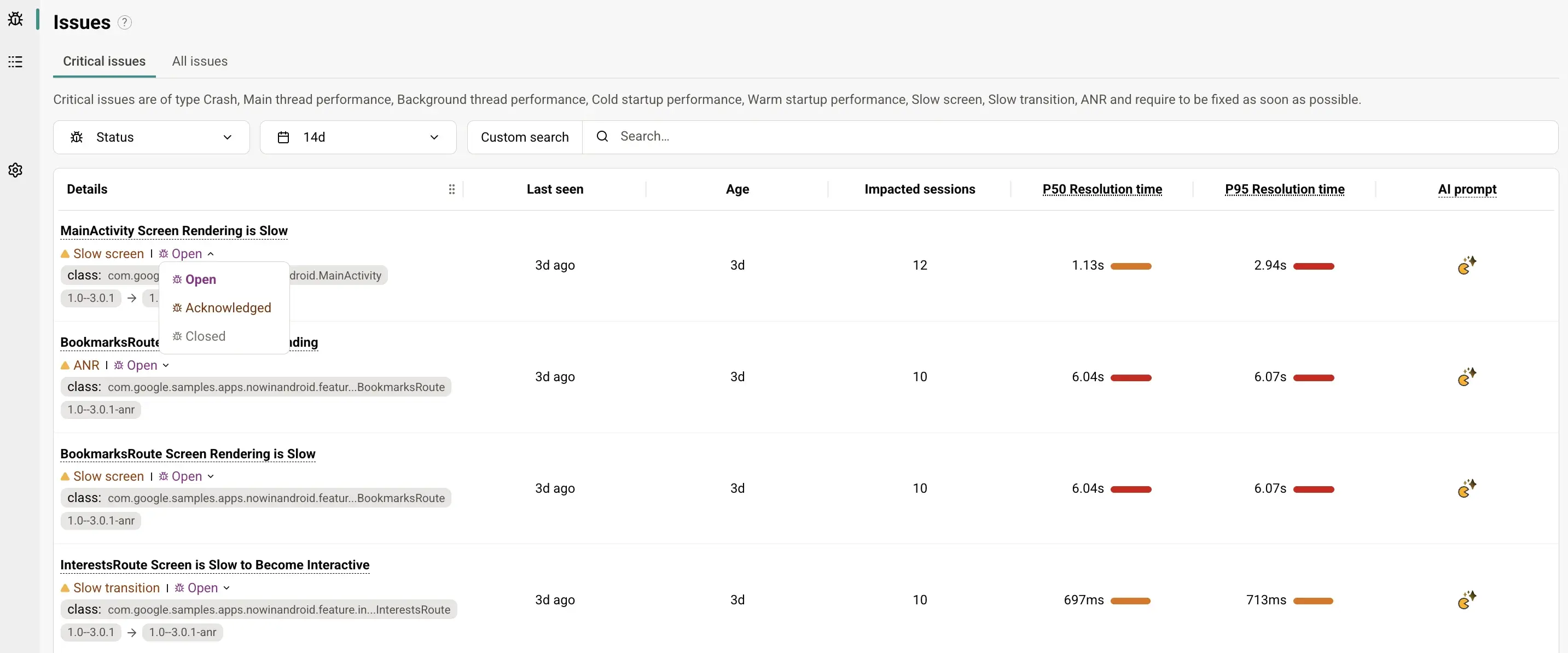
- Open, acknowledge or close an issue directly from the issues list, without opening it.
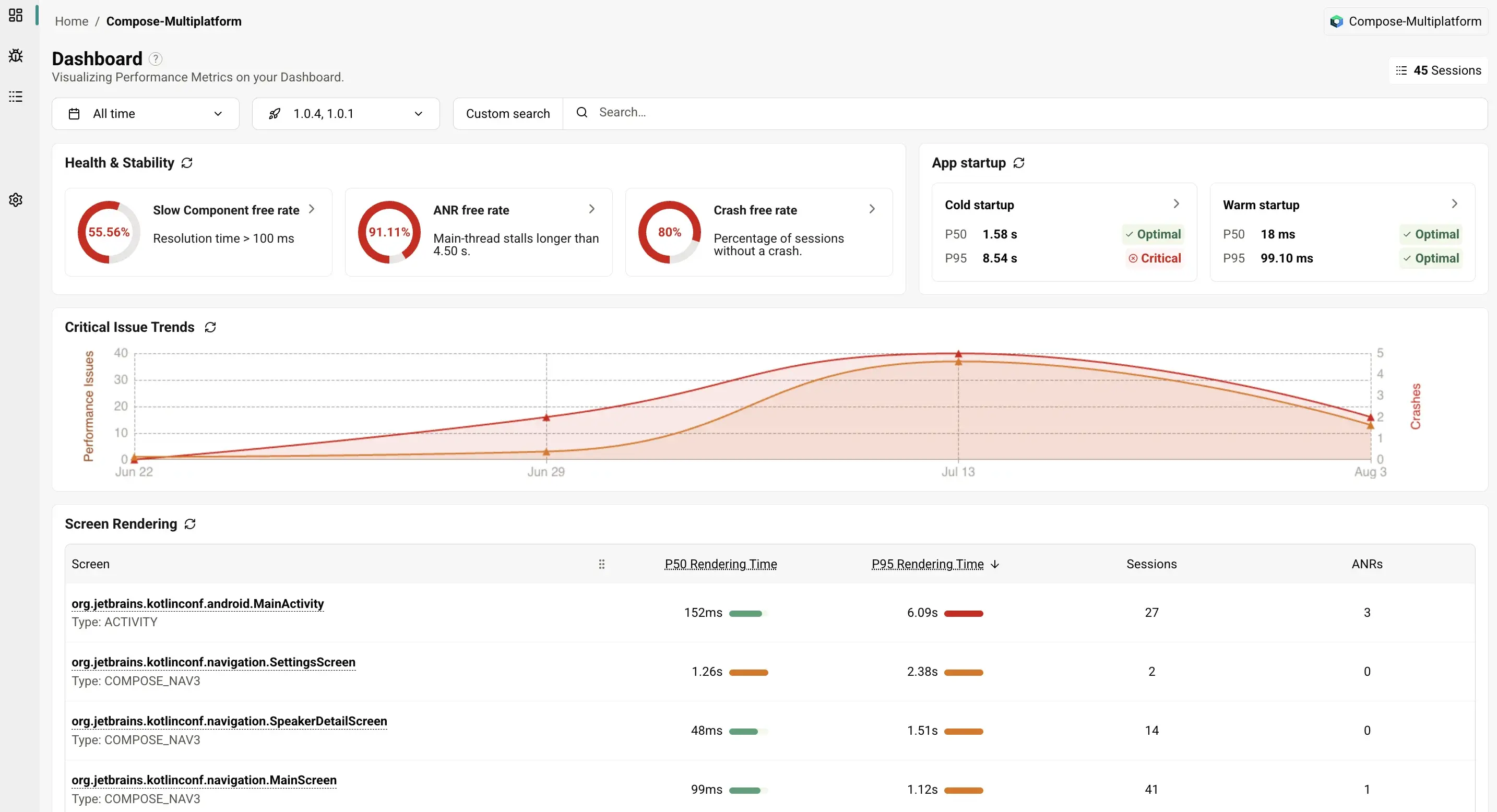
- Select several versions on the dashboard or a screen's details page to see their combined data: health and stability, app startup, critical issue trends and screen rendering. This replaces the separate version comparison page.
- Faster dashboard loading for apps with large session volumes.
- Upload mapping files larger than 32 MB from the app settings.
- Desktop and web apps now get screen component stats and main-thread issues.
- A clear warning when ingestion is paused because your organization reached its plan's event quota.
Frequently asked questions
Which AI coding agents work with the Kotzilla MCP server?
You can install the Kotzilla MCP server from Claude Code, Cursor or any coding agent, with one prompt. Cursor connects natively over HTTP. The Investigate with MCP button in the Console opens the Claude or Cursor desktop app, and you can copy its prompt into any other assistant.
Does the agent close issues on its own?
After it verifies a fix on a fresh session, the agent proposes closing the issue in Kotzilla, and closes it once you approve. You can also open, acknowledge or close an issue yourself from the issues list in the Console.
Do I need to change my code to upgrade to SDK 3.0?
No code change is needed to upgrade from SDK 2.3.x. To track a Compose screen outside Navigation, add the @TrackScreen annotation to it.
What is the minimum supported Kotzilla SDK version?
SDK 2.1.1 is now the minimum version. Apps on older SDKs can no longer send sessions.
What's next?
If you try it, we'd like to hear which agent you used and what it found in your app.
.png?height=200&name=kotzilla-featured-health%20(1).png)