.svg)

Within the Kotlin ecosystem, as you know, it's important to stay abreast of the latest technologies...
The Kotzilla Console 4.0 introduces a new Dashboard that connects business-level health metrics to the root cause detection Kotzilla is known for. In this article, I walk you through how it works using a real app from the first KPI you see to the exact component causing the problem.
Overview
When we launched Kotzilla, we focused on one main thing: helping Android and KMP developers find the root causes of critical performance issues and crashes so you can fix them faster.
Not just showing you that something is slow or crashing. Showing you why. Which component is blocking the main thread. Which dependency is resolving slow. Which component has a dependency graph so complex that resolution drags everything down and makes the codebase painful to maintain.
A lot of mobile developers and engineering managers told us they had been "navigating blind". Most monitoring tools work with flat signals: logs, stack traces, spans. The data carries no inherent meaning, so you need volume and manual correlation to find patterns.
The Kotzilla Platform captures every event with full structural context built in: which component, which thread, which scope, which screen. The data already knows the answer. That's what makes automatic root cause detection possible.
Why we built the Dashboard
But we also heard that sometimes the analysis using Kotzilla felt too technical, too low-level. It wasn't always easy to connect a slow ViewModel resolution to the business KPIs and user impact: which screen is frozen? Is it getting worse across releases?
So we built the new Dashboard. Not to replace the deep analysis you already rely on, but to sit on top of it. Business-level health KPIs, connected directly to the root cause detection you already know. See real impact on users. Share it with your team. Decide together what to prioritize.
Console 4.0 flips the workflow. You start from health metrics and drill down to root causes. Think of it as a cockpit: the instruments tell you what needs attention, and every indicator connects directly to the underlying issue.
No custom traces. No manual tagging. The platform detects performance issues and crashes automatically, then organizes them around the metrics that actually matter to your users.
Start from what matters
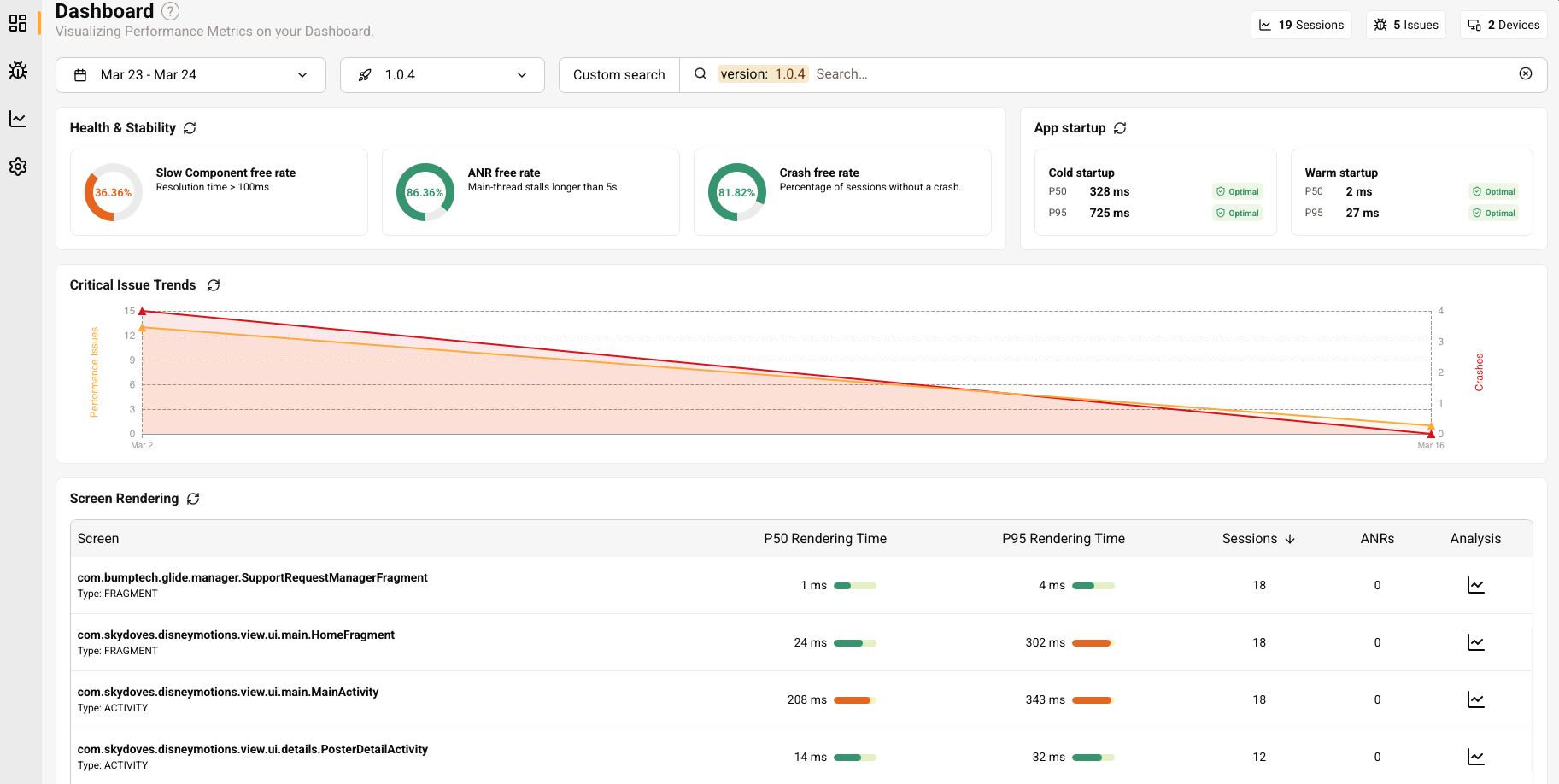
The new Dashboard is built around three health KPIs, displayed as the first thing you see when you open your app:
- Slow Component Free Rate - the percentage of sessions where no component exceeded 100ms resolution time
- ANR Free Rate - the percentage of sessions free from main-thread stalls
- Crash Free Rate - the percentage of sessions without crashes
Below those, startup cards show cold and warm startup times at P50 and P95 with severity indicators. A time-series chart tracks the evolution of performance issues and crashes over time, so you can spot regressions.
And then the slow screens table. This is where it gets really interesting. Every screen in your app is ranked by rendering time (P50 and P95), with session count and ANR count. You immediately see which screens are hurting the most users.
The Dashboard works for Android, Android with Compose, and Kotlin Multiplatform projects. Screen detection currently covers Android Activities and Fragments, with Compose screen rendering support coming next. For KMP apps, the latest SDK also supports iOS crash reporting.
Every KPI card is clickable. Click on the Crash Free Rate and the Issues view filters to show only crashes, sorted by session impact. Click on Slow Component Free Rate and you land on a detailed breakdown of all performance and architectural issues. You don't search for problems. The dashboard surfaces them by how many users they affect.
Real example
To make this concrete, let's look at a real app. The Kotzilla Sandbox includes a sample Android app (a Disney-themed demo) with pre-collected session data.
The slow screens table immediately ranks every screen by rendering time. You'll notice two fragments (LibraryFragment and RadioFragment) showing extreme P95 values and ANRs, but on only 3 sessions each.
The interesting screen is MainActivity: P50 212ms, P95 343ms, observed across 15 sessions. Moderate rendering time, but consistent across enough sessions to be a reliable signal. Let's click on this one.
From slow screen to root cause
The Screen Details view breaks down what's happening inside that screen:
- Rendering performance: P50 and P95 rendering times across all observed sessions
- Navigation patterns: the top ways users reach this screen
- Blocking components: ranked by impact, with resolution times and an Issues Detected column linking directly to the problems found
For MainActivity, the blocking components table lists every component involved in rendering the screen. At the top: MainViewModel, the main blocker. But you also see the full chain below it: DisneyService, Retrofit, PosterDao, AppDatabase, OkHttpClient, each with their own P50 and P95 resolution times.
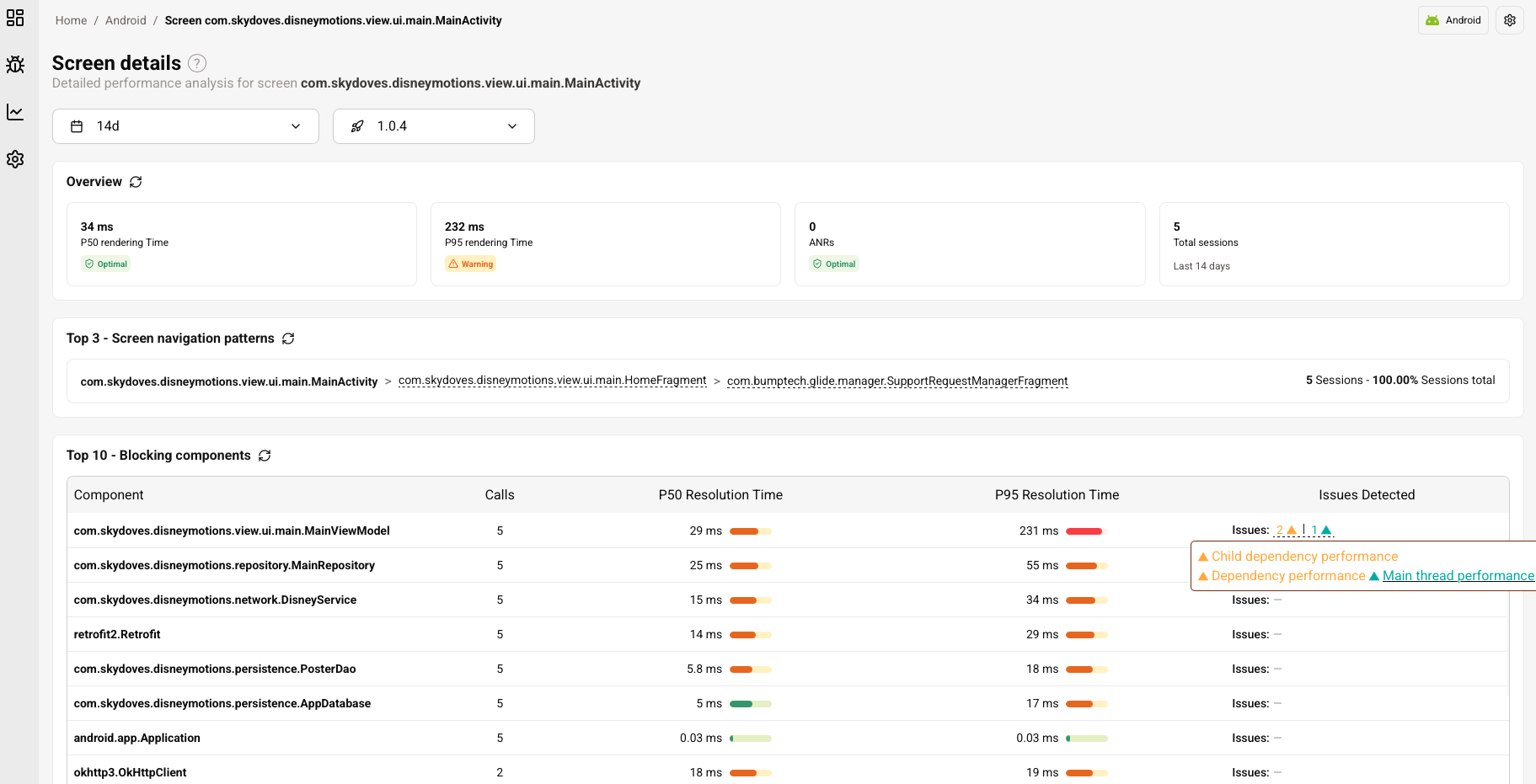
The key column is Issues Detected. For MainViewModel, you'll see three distinct issues flagged by the platform, each represented by a clickable indicator:
- Main Thread Performance - the biggest impact. MainViewModel is resolving on the main thread with times that directly block UI rendering
- Dependency Performance - slow resolution of MainViewModel's own dependencies
- Child Dependency Performance - transitive slowness rippling through the dependency chain
Click on any of these and you land directly on the issue detail with full context: session count, P50/P95 timing, and the dependency tree that explains the root cause.
Three issues, one component, all detected automatically. No custom instrumentation, no manual correlation. The dashboard surfaced a slow screen, the blocking components table identified MainViewModel as the culprit, and the Issues Detected column told you exactly what's wrong and why.
Drilling into the issue
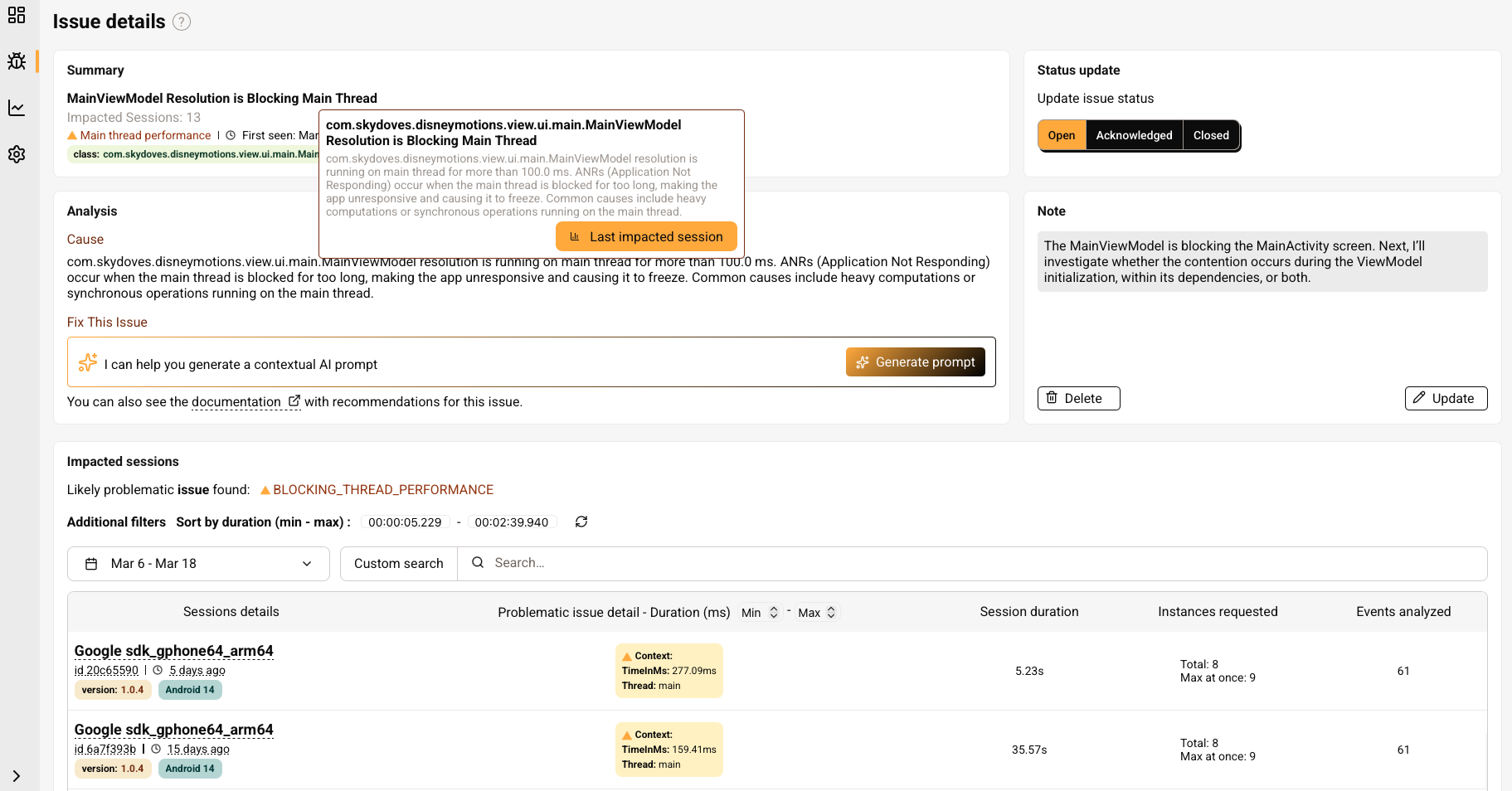
Click on Main Thread Performance, the issue with the biggest impact, and you land on the Issue Details view. The summary is clear: "MainViewModel Resolution is Blocking Main Thread." Below it, an analysis explains what's happening: the component is resolving on the main thread for too long, making the app unresponsive and risking ANRs.
The page also lists every impacted session, sorted by duration. You can see which devices were affected, how long the problematic resolution took, and how many events were analyzed. A note on the side confirms: MainViewModel is blocking the MainActivity screen, and the platform will investigate whether the issue comes from the ViewModel's initialization, its dependencies, or both.
From issue to session to resolution graph
Click on the latest impacted session and you're in the Session Details view. The timeline shows the key moments of that specific user session: which activities launched, which components resolved, and how long each took.
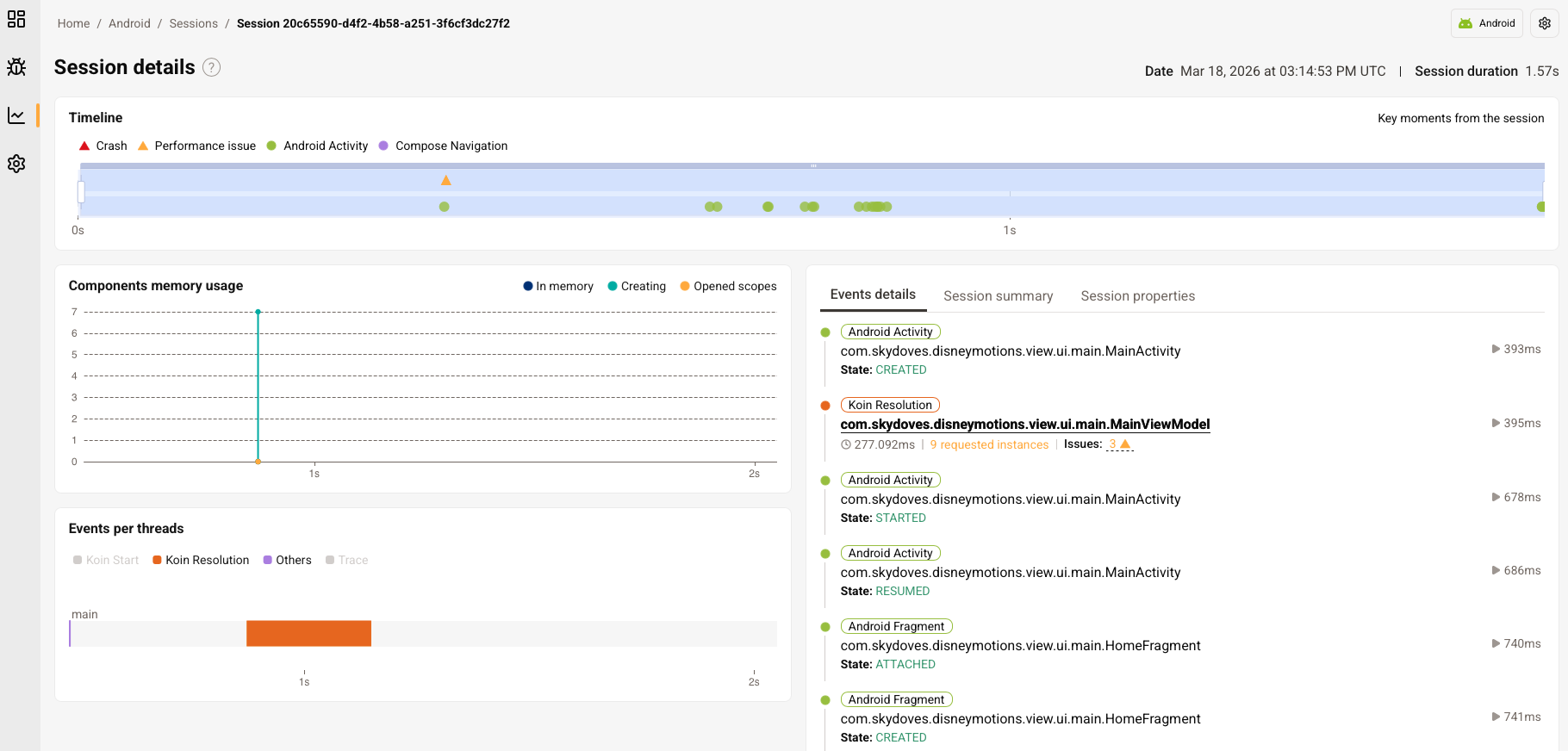
On the main thread, MainViewModel stands out immediately. Its resolution bar dominates the timeline, blocking everything else while the user waits. You can see the exact sequence: Android Activity starts, then MainViewModel resolution kicks in and holds the main thread.
Click on the MainViewModel event and the Detailed Event Insights panel opens with the full resolution graph. This is where you see the complete picture: the dependency chain (every CREATE operation for each dependency) and the ViewModel's own initialization time. The platform confirms that the problem comes from both: dependency chain resolutions and the constructor initialization of the ViewModel itself.
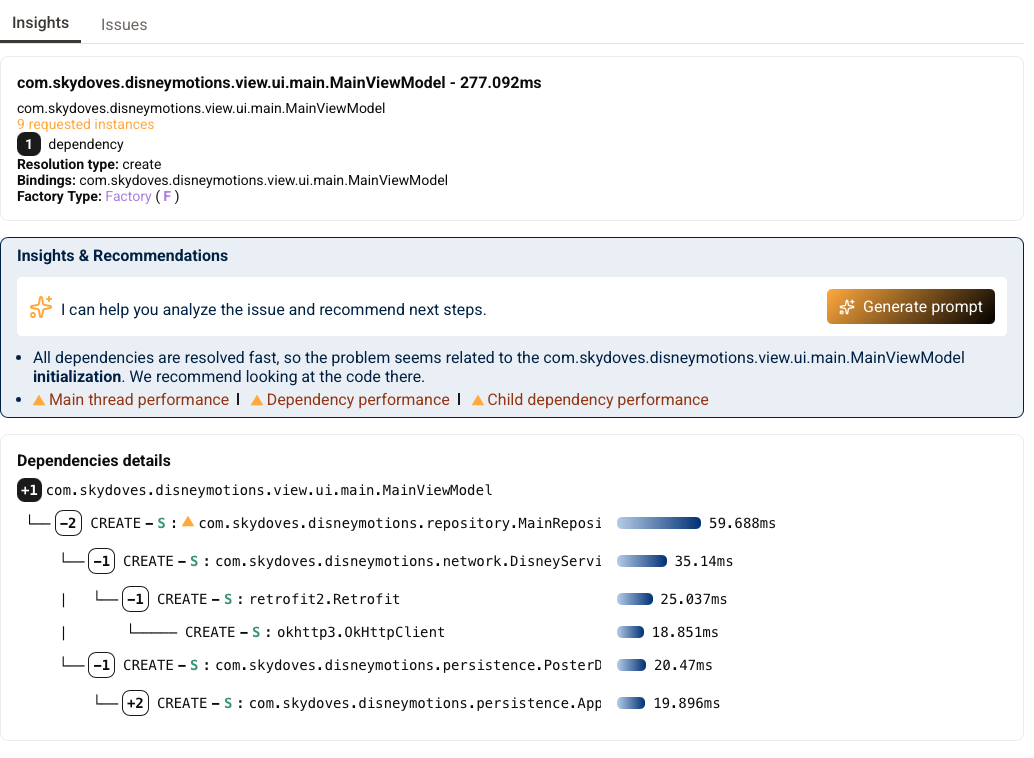
Three issues are listed right there: Main Thread Performance, Dependency Performance, and Child Dependency Performance. All linked to the same component, all detected automatically from the dependency graph.
From root cause to fix
You've traced the problem from a slow screen, to a blocking component, to the exact dependency resolutions causing the slowdown. Now you need to fix it.
From the Detailed Event Insights panel, click Generate Prompt. Kotzilla understands your app's dependency graph, not just its traces so the generated prompt brings real architectural context: resolution chains, timing data, impacted screens, factory types, and bindings.
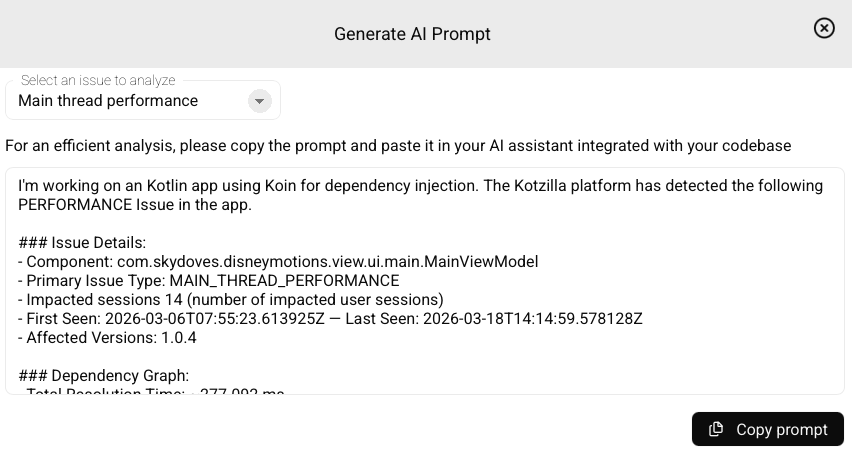
Paste that prompt into your AI coding assistant and you get fix guidance grounded in your actual app architecture. The same contextual prompts are also available from other views in the Console.
And if you're working in Android Studio, the Koin IDE Plugin brings the same capability directly into your editor: dependency graphs, issue detection, and contextual prompts without leaving your code.
We're working on taking this further: connecting Kotzilla's analysis and remediation capabilities directly to the AI coding tools you already use. More on that soon!
Try it yourself
Everything in this article comes from the "Android" sample app in the Kotzilla Sandbox. Open it, go to the Dashboard, and follow the same path. No setup, no account required.
When you're ready to try it on your own app:
Have fun!
Miguel
About the Author: This article was written by Miguel Valdes-Faura from the Kotzilla team. Kotzilla provides AI-Native Developer Observability for Android and Kotlin Multiplatform apps, trusted by leading companies like Canal+, TotalEnergies, Worldline, Volkswagen or Decathlon to speed up issue resolution and reduce downtime. Follow us for more insights on Android development best practices and performance optimization strategies.